
A swing-analysis tool, built into the software you run your coaching on.
Slow-motion capture up to 240fps. Six drawing tools plus a 17-point pose overlay. Side-by-side comparison. Voice-over. Every analysis tied to the student's plan and lesson history. Designed for coaches.
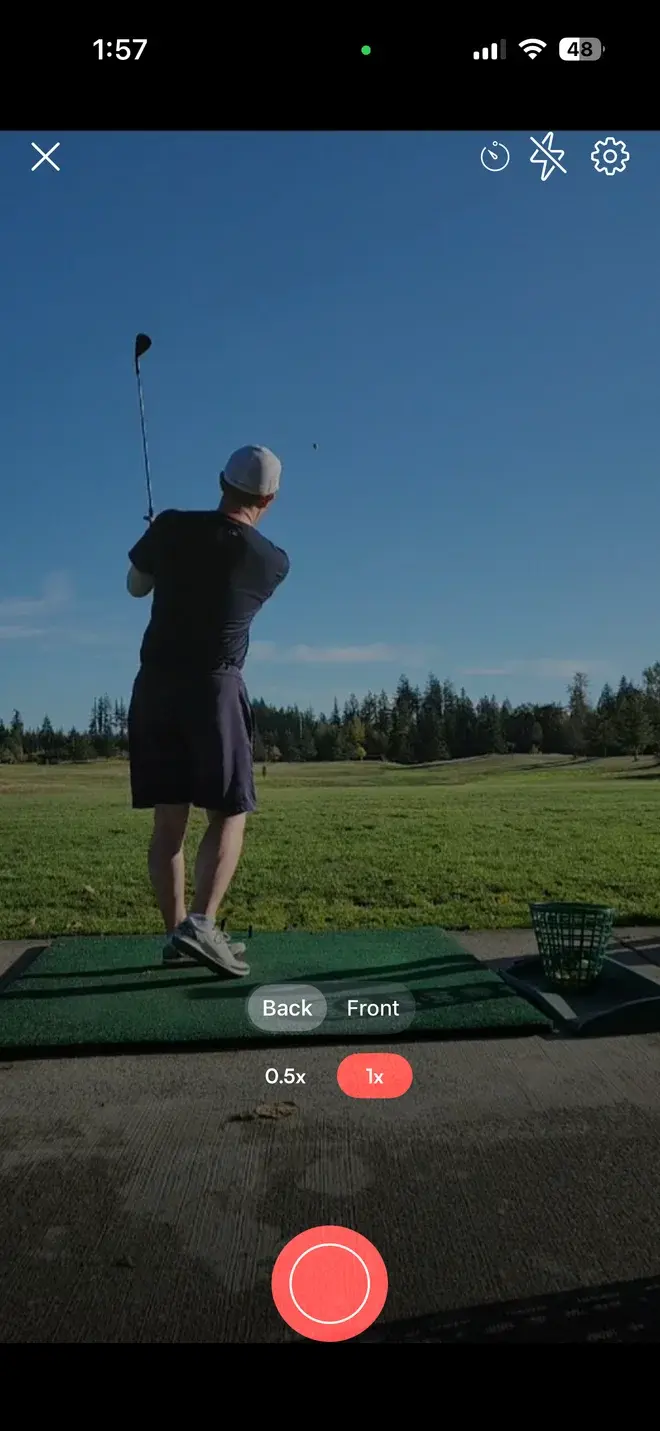
Slow-motion capture, up to 240fps, on the phone in your student's pocket.
Skillest gives you and your students a purpose-built capture flow. Slow-motion, swing detection, and one-tap trimming to the swing, built into the app.
- Up to 240fps on iPhone.True high-frame-rate capture, device-dependent, up to 240fps.
- Swings flagged as they film.On iPhone, each swing is detected live and flagged on screen, so students know they got the rep.
- Auto-trim to the swing.One tap finds each swing and trims the dead air out of a long range session.
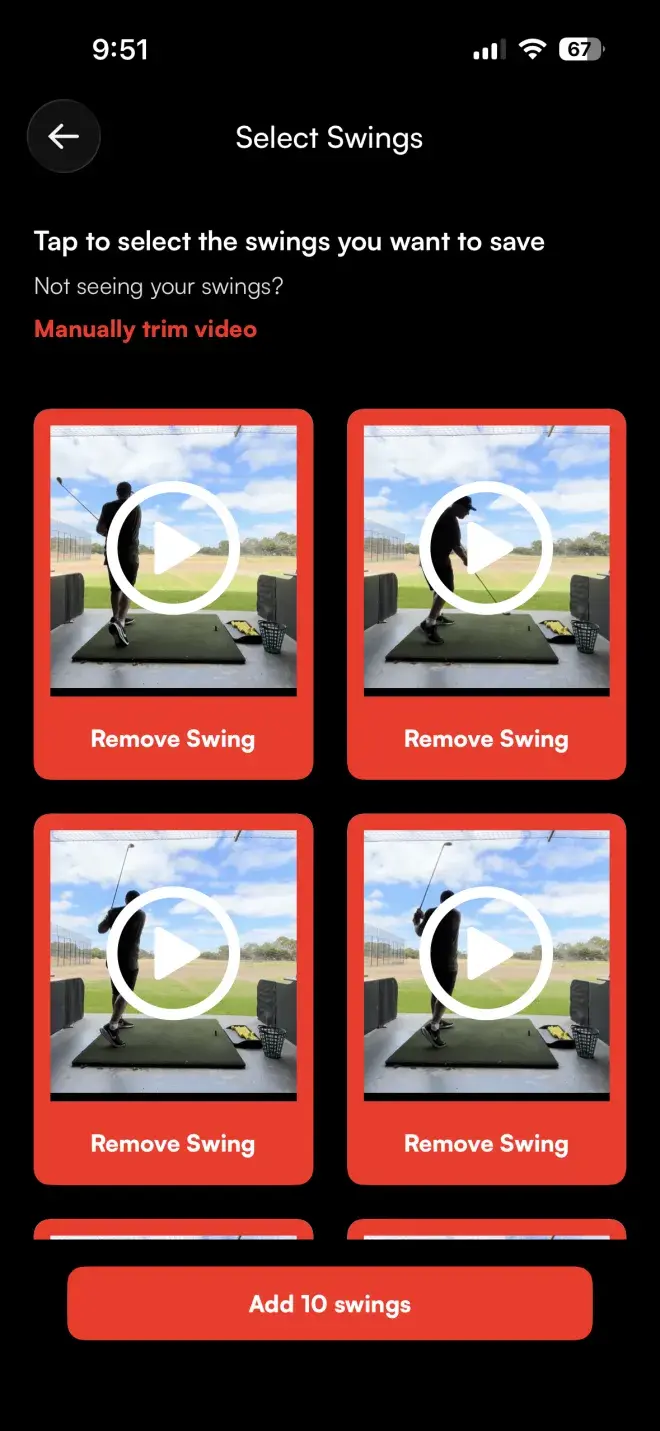
Skillest finds the swing for you. One tap trims it clean.
Detection runs on-device after a recording, and in realtime as the student films on iPhone, tracking the swing from address through finish. Then Auto Trim Swings turns a long range session into a clean set of individual swings, ready to mark up.
- On-device detection.Detect swings after the recording, or live while the student films on iPhone.
- Built to ignore stray movement.Detection looks for a full swing through address to finish, so incidental movement gets filtered out.
- Tracks the whole swing, address to finish.Follows the swing through the positions coaches already teach to find each one automatically.
- Works face-on or down-the-line.Tells a real swing from someone just moving the phone, whatever angle you're filming from.
- Auto Trim Swings, one tap.A long range session becomes a clean set of individual swings, ready for analysis.
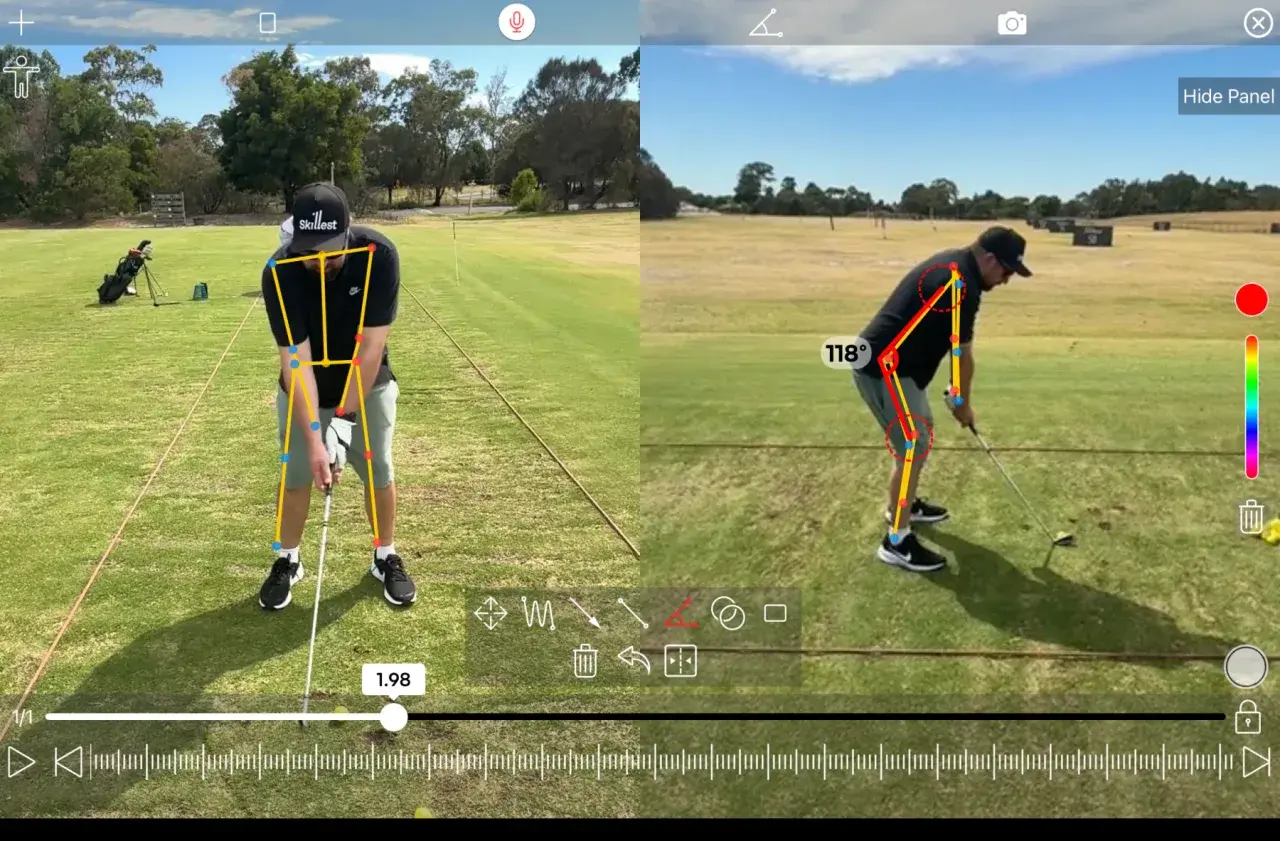
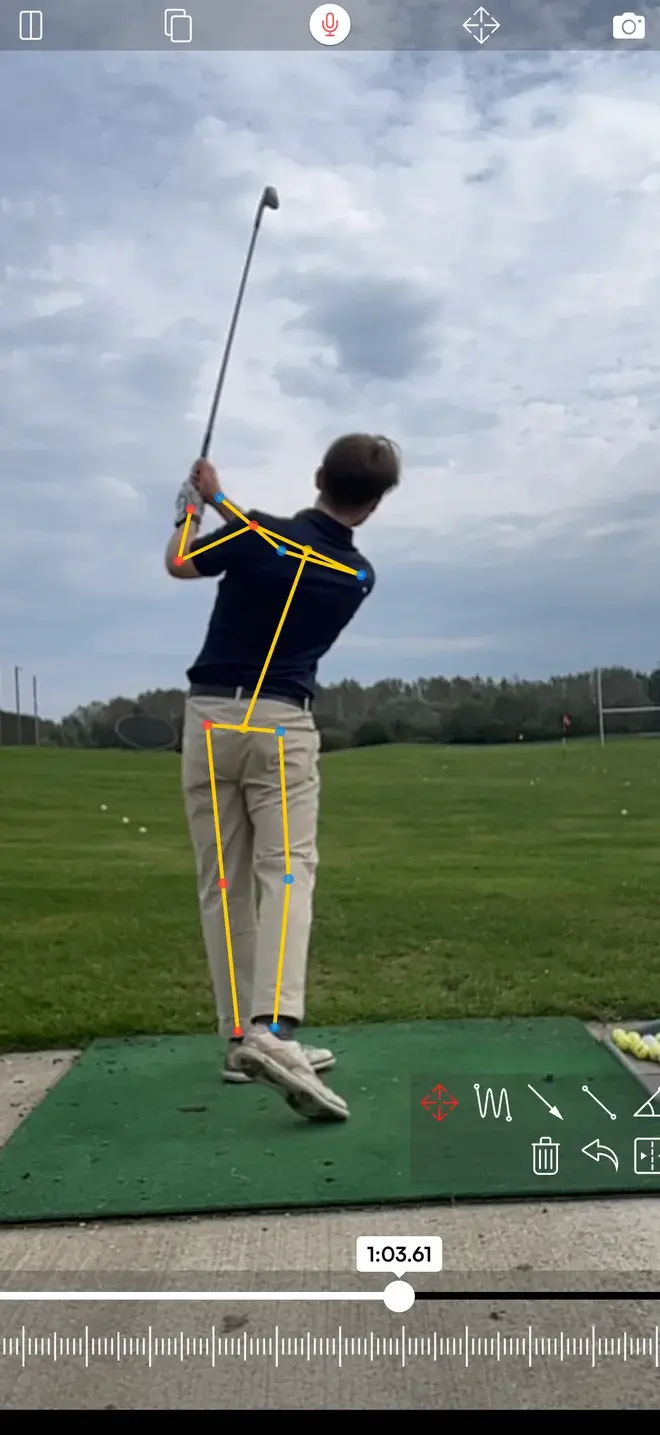
Six drawing tools, plus a 17-point pose overlay.
Freehand, arrows, straight lines, angles, ovals and rectangles for manual telestration, and a 17-point pose-skeleton overlay you can switch on for any swing. The tools coaches actually reach for on every analysis.
- Live angle measurement.Draw the angle tool between any three points and read it off in real time.
- Pose skeleton on demand.Switch it on and 17 body keypoints are tracked with a confidence score per joint, no manual tracing required. iPhone and iPad.
- Pick your stroke colour.Set the colour for what you draw next, then undo the last mark or clear the frame.
- Apple Pencil on iPad.Draw naturally with a Pencil instead of a fingertip.
Compare any two swings, with a synced playhead.
Same student last lesson vs. today. A student vs. a stored reference video. Lock the playheads in the comparison view on iPhone or iPad and you scrub both clips together.
- Synced playback.On iPhone and iPad, lock the two playheads together and one scrubber drives both videos.
- Annotate either clip.Draw on the left or the right to make the difference obvious.
- Compare any two clips.Two different swings, two different sessions, or a stored library video.
- Export the comparison.Render both panels into a single shareable video.
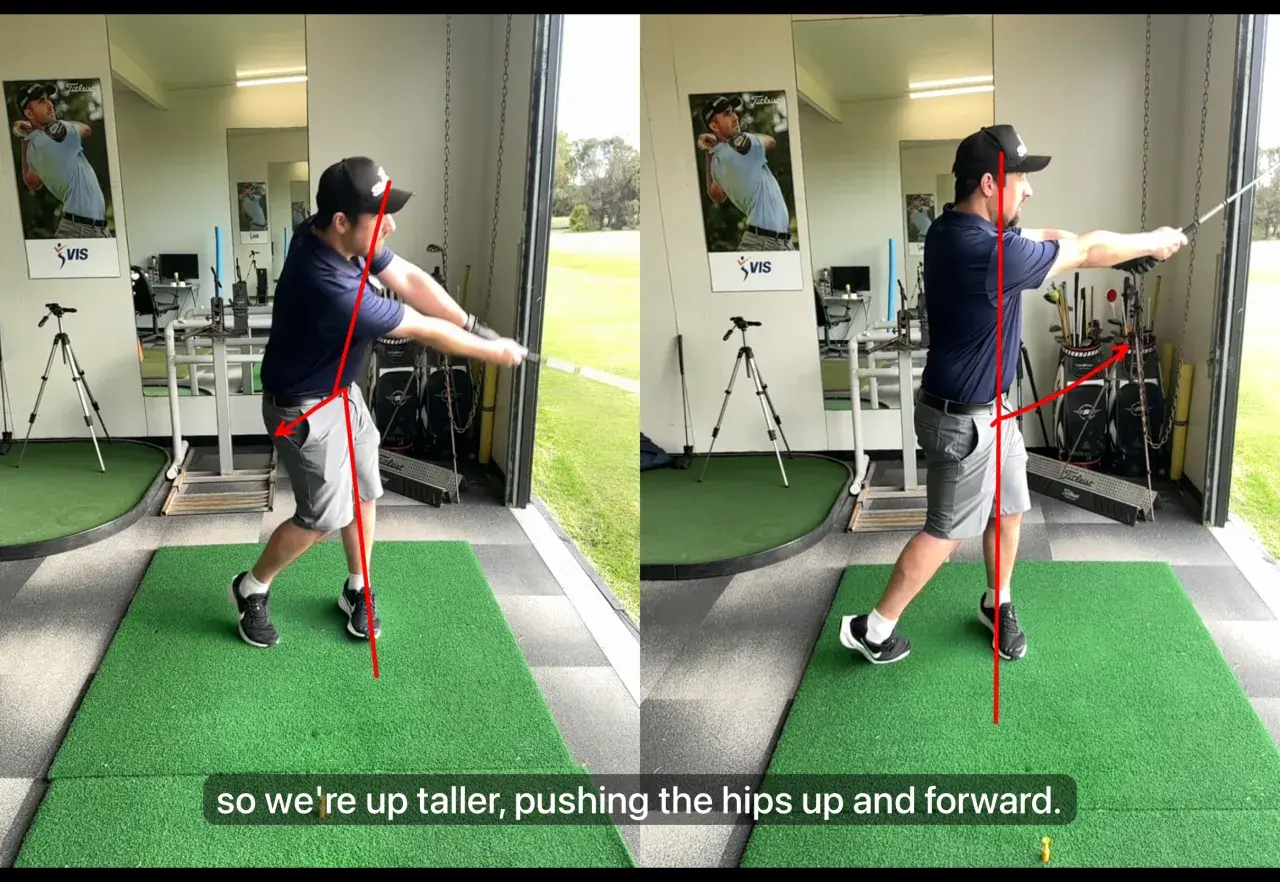
Talk over the swing. Send back one finished video.
Hit record and narrate while you draw, scrub and compare. Skillest captures your voice and everything on the canvas together, then renders it all into a single video for the student.
- Talk while you draw.Your voice and every annotation are captured together, in sync.
- Pause and resume.Stop to set up the next point, then pick the take back up where you left off.
- Interruption-safe.A phone call mid-recording doesn't cost you the take.
- Render to a single video.A finished shareable video the student keeps forever.
Skillest is a total game-changer. I can deliver detailed, high-level coaching and stay closely connected with my students no matter where they are in the world. It's revolutionized how I coach.
 Alex Riggs · Skillest coach
A 17-point pose skeleton, on any swing. Measure angles live.
Switch the overlay on and computer vision lays a 17-point skeleton over the body, frame by frame. Pair it with the angle tool to measure exactly what you're seeing, live, on the canvas. Available on iPhone and iPad.
- 17 keypoints tracked for you.Head, shoulders, elbows, wrists, hips, knees and ankles, frame by frame.
- Live angle measurement.Drop the angle tool on any two skeleton points to read the number instantly.
- Toggle on or off.Show the overlay while you talk through it, hide it for a clean frame.
- You choose what to save.Submit your finished analysis and it lands in the student's lesson history.
From a swing on the range to feedback in their inbox.
Student films
Slow-motion capture in the app, with swing detection and one-tap auto-trim.
You analyse
Draw, measure, compare side-by-side, record a voice-over, all in one editor.
Send it back
Rendered to a single shareable video, tied to the student's plan.
Track progress
Every analysis is searchable in the lesson library forever.
Studio-grade, in your pocket.
Up to 240fps
High-frame-rate slow motion on iPhone, up to the device's maximum rate.
6 tools
Freehand, arrow, straight line, angle, oval and rectangle, plus a pose overlay.
17-point pose
Turn it on and a skeleton tracks the body frame by frame, with a confidence score per joint. iPhone and iPad.
Synced playback
Scrub two swings together with a linked playhead on iPhone and iPad.
Pause & resume
Pause mid-take and pick up where you left off. An interruption doesn't cost you the recording.
One shareable video
Annotations, voice-over and comparisons rendered into a single video.
Frequently Asked Questions
Swing analysis, answered.
Do I need a special camera?+−
Can students film their own swings?+−
How does swing detection work?+−
What does Auto Trim Swings do?+−
What does the pose overlay actually show me?+−
Can I compare two swings side-by-side?+−
Does the analysis save to the student's record?+−
Coach like a broadcaster. Built into the software you already run on.
Earn more, save time, and deliver world-class coaching, on your terms.
7-day free trial for new coaches